For edits, identify each reference by its order: first image, second image, or third image.
Each generated image is billed separately.
Sign in to spend tokens
Prompt is required
Your generated images will appear here
Qwen Image 3.0 Pro creates polished campaign images from a prompt and makes precise multi-reference edits. Start with a simple 1K draft, move to 2K for final assets, and use advanced controls only when you need them.
Explore a curated fashion creative that pairs precise typography, premium material detail, and a cohesive editorial transformation.
Example creative · not a workspace result
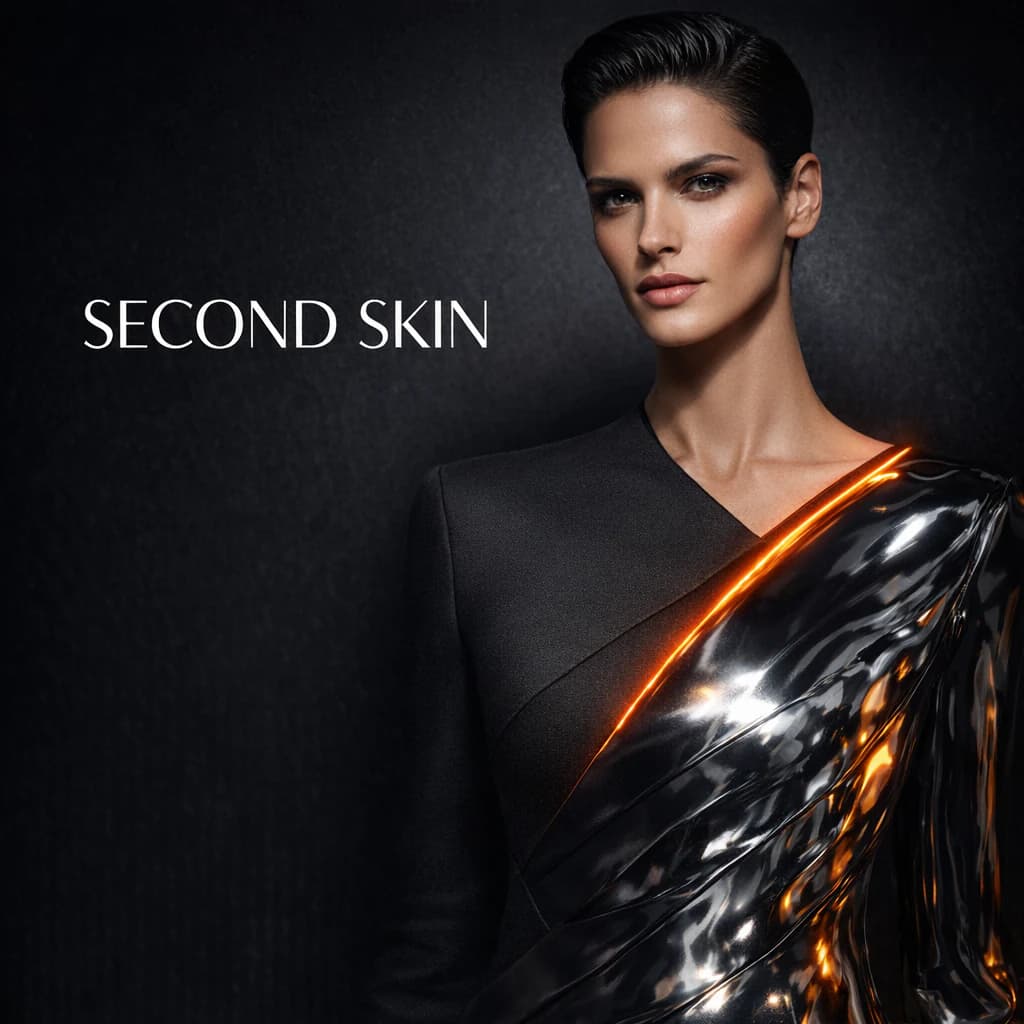
Qwen Image 3.0 Pro is a premium image tool for ad creatives, product visuals, editorial scenes, social assets, and design concepts. Create mode turns a written brief into a new image; Edit mode combines your instructions with one to three uploaded references.
Edit mode is designed for controlled campaign changes. You can preserve the person in one reference, use the product from another, and borrow the art direction from a third. Number the references in your prompt so every role is unambiguous.
The default workflow stays fast: choose a mode, write a prompt, select 1K or 2K, pick an aspect ratio, and generate. Advanced settings add custom dimensions, a negative prompt, prompt enhancement, repeatable seeds, and PNG, JPEG, or WebP output.
Create polished beauty, fashion, wellness, food, or technology hero visuals from a written art direction.
Replace the item inside a winning composition while preserving the person, camera angle, lighting, and mood.
Keep a creator recognizable while moving them into a cleaner branded environment and refining the set.
Develop the same concept for square feeds, portrait Stories, landscape placements, and presentation layouts.
Describe headline hierarchy, placement, and packaging text directly in the creative brief.
Turn a detailed creative brief into a finished image with controlled composition, lighting, material, and typography direction.
Combine a source, product, and visual direction while clearly assigning each uploaded image a role in the prompt.
Use 1K for quick drafts and 2K for sharper final campaign assets, with common social and advertising aspect ratios.
Set width and height from 512 to 2048 pixels when a preset does not match the placement you need.
Enable prompt enhancement, exclude unwanted details with a negative prompt, and reuse a seed for more repeatable iterations.
Generate one to four images in a run and compare creative directions without rebuilding the setup.
Choose Create for a new image or Edit to transform existing visuals.
In Edit mode, upload one to three JPG, PNG, or WebP references. Each side must be 384–2048 pixels and each file can be up to 10 MB.
Write the subject, composition, lighting, materials, exact text, and brand details. For multiple references, say first image, second image, and third image.
Choose 1K for drafts or 2K for final detail, then select the target aspect ratio.
Optionally open Advanced settings for custom dimensions, negative prompt, prompt enhancement, seed, or output format.
Choose one to four images and generate. Completed assets appear in your project library for download and reuse.
Generate quick drafts and production-ready social assets at 1 token for each output image.
Choose the higher-resolution tier for final campaign detail at 2 tokens for each output image.
If an image run cannot be completed, the tokens charged for that run are returned automatically.
Edit mode accepts one to three references. Use the prompt to define what should be taken from each image.
Upload JPG, PNG, or WebP files up to 10 MB each. Every image side must be between 384 and 2048 pixels.
Each 1K image costs 1 token and each 2K image costs 2 tokens. A batch is priced per output image, with the total shown before you generate.
Yes. Advanced settings accept width and height from 512 to 2048 pixels, subject to the output pixel budget for the selected mode.
You can download PNG, JPEG, or WebP output.
The run moves to a clear failed state and its token charge is refunded automatically. Internal technical details are never shown in the workspace.
Published 2026-08-10 · Last updated 2026-08-10